Installation & Quickstart
We recommend users to make a virtual environment first using python >= 3.8.6
For Windows users, install WSL and linux distribution (tested with ubuntu 20.04, Centos7).
This software has dependencies on linux compiled binaries. It is recommended for Mac/Windows users to use dockerized version (Install using docker part below)
Prerequisite
Python3.8 or conda environment is required
Install Using PIP (Linux/Windows WSL)
To install (as root):
$ pip install --upgrade dtiplayground
To install (as user):
$ pip install --user --upgrade dtiplayground
Initialize:
$ dmriplayground init
Run DTIPlaygroundLab (UI):
$ dmriplaygroundlab
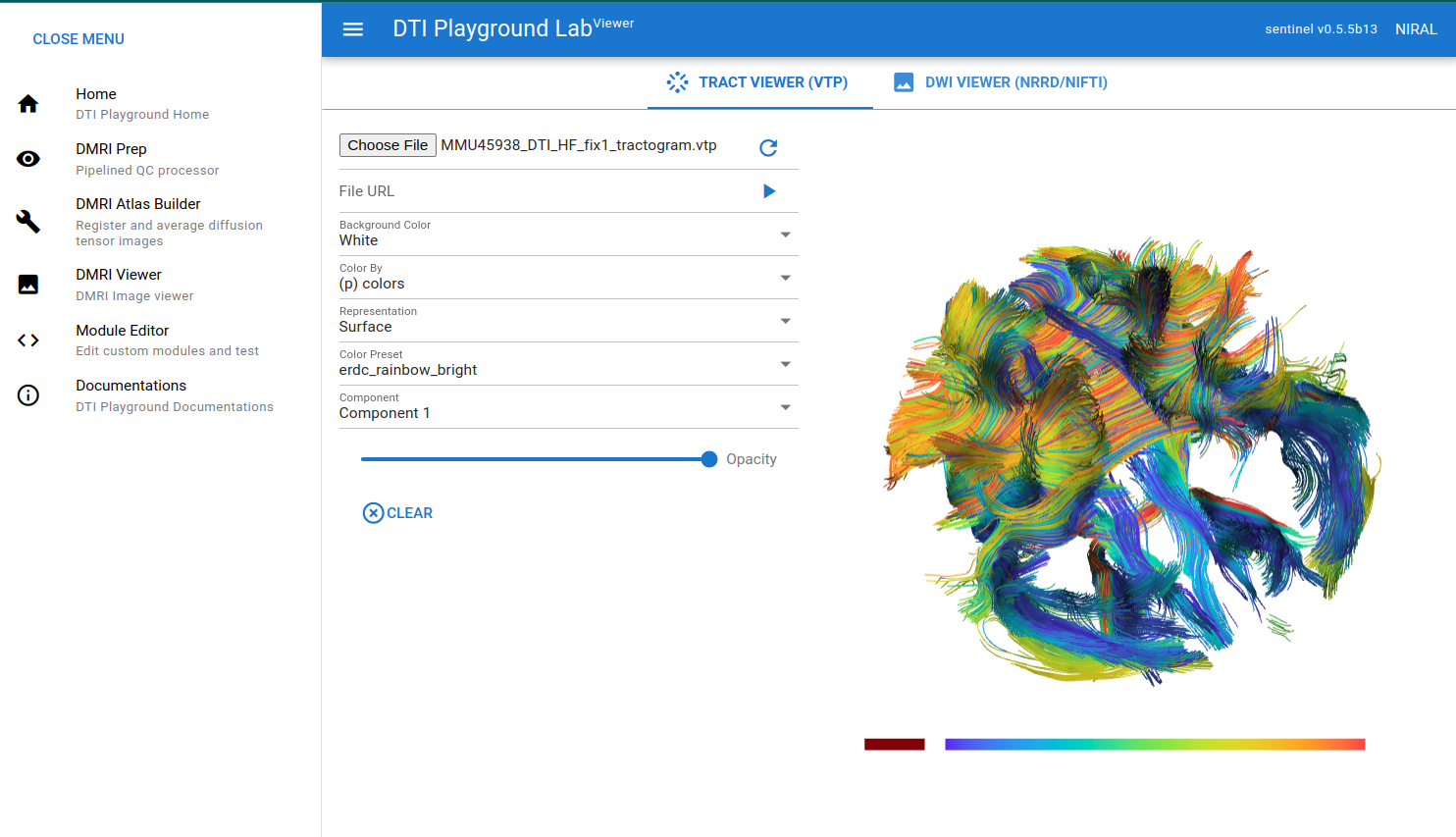
Once launched, you can open the link in your browser and have fun.
Install Using Conda (Linux/Windows WSL)
Create the environment and install:
$ conda create -n dtienv-py38 python=3.8
$ conda activate dtienv-py38
$ pip install --upgrade dtiplayground
$ dmriplayground init
$ dmriplaygroundlab
Install Using Docker (Linux/Windows/MacOS)
To install (with Docker):
$ docker pull niraluser/dtiplayground
Current docker image contains all the necessary tools (FSL/DTIPlaygroundTools) and configurations initialized.
To use the container:
$ docker run -it --rm -e HOME=$HOME -v $PWD:$PWD -v <WORKDIR>:<WORKDIR> niraluser/dtiplayground
Make sure to set HOME directory when running docker container, this will install or check FSL and DTIPlaygroundTools. If omitted, it tries to install those software every execution inside of docker container which is volatile.
If you experience error during installation of tools, remove configuration directory:
$ rm -rf $HOME/.niral-dti
Install legacy UI (To be obsolete, Linux Only)
PyQt based native UI has moved to different repository, if you want to use it for some reason:
$ pip install dtiplayground-native
$ dmriprep-ui
Installation of necessary tools
This will be automatically done when initiated (or during the first run). If you want to install or use existing tools (installed via dmriplayground) , use below instructions.
Install DTIPlayground Tools (docker & docker-compose required if custom build is needed) * python2 should be executable. (e.g. $ python2 ). If not install python2 and link it to python2
Default:
$ dmriplayground init
Options:
$ dmriplayground install-tools [-o <output directory>] [--clean-install] [--no-remove] [--nofsl] [--install-only] [--build]
If you want to use pre-installed FSL/DTIPlaygroundTools:
$ cp <some-dir>/global_variables.yml $HOME/.niral-dti/
If you want to change paths of installed tools (such as FSL):
$ vi ~/.niral-dti/global_variables.yml
Note
Build tested only on CentOS7 for now. However, it would work on most of linux systems. You don’t need to install this tools everytime you upgrade dtiplayground.
$ dmriplayground install-tools [-o <output directory>] [–clean-install] [–no-remove] [–nofsl] [–install-only] [–build]
Default output directory is $HOME/.niral-dti/dtiplayground-tools if output directory option is omitted
If –clean-install option is present, it removes existing software packages and temporary files first.
If –no-remove option is present, it doesn’t remove temporary build files after installation
If –nofsl option is present, it will not install FSL.
If –install-only option is present, it will not update software path file of the configuration of the current version.
If –build option is present, it will build DTIPlaygroundTools with docker (docker required)
Once installed, $HOME/.niral-dti/global_variables.yml will have information of the tools including root path of the packages, and automatically changes software paths for the current version of dmriprep unless –install-only option is present.